Nothing kills office productivity faster than a network error. When you need to send an urgent document to the shared printer or pull a file from a colleague’s computer, a sudden Windows error pop-up can bring your entire workday to a halt.
If your office is grinding to a halt because of connectivity issues, here are step-by-step solutions to fix the three most common Windows network sharing errors.
Error 1: The “Cannot Access” Error (0x80070035)
- The Problem: You try to open a shared folder and get the message, “Windows cannot access \\SERVER-NAME” (Error code: 0x80070035). This usually happens when Windows updates reset your network sharing permissions.
- How to Fix It:
- Check Your Network Profile: Click the Wi-Fi or Ethernet icon on your taskbar. Click ‘Properties’ on your connected network. Ensure the Network Profile is set to Private, not Public.
- Turn on Network Discovery: Press the Windows Key, type Control Panel, and go to Network and Sharing Center > Advanced sharing settings. Ensure “Turn on network discovery” and “Turn on file and printer sharing” are both checked.
- Disable Password Protection: In the same Advanced sharing settings window, scroll down to “All Networks” and select “Turn off password protected sharing” (only do this if you are on a secure, private office network).
Error 2: The Network Printer Crash (0x0000011b)
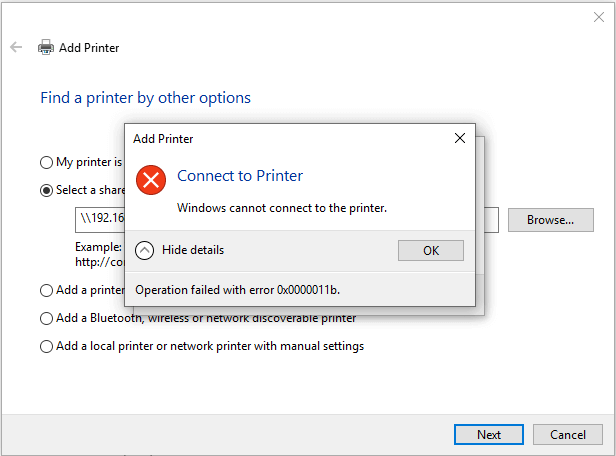
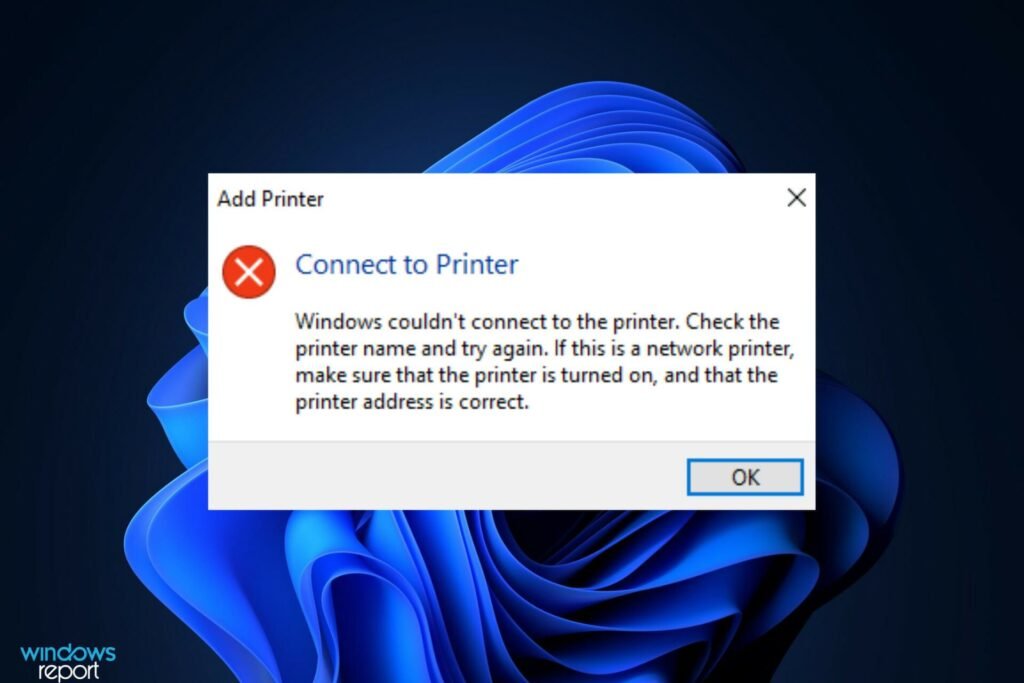
- The Problem: The shared printer was working yesterday, but today you get “Windows cannot connect to the printer” (Error 0x0000011b). This is a notorious error caused by recent Windows security patches that block USB-shared printers.
- How to Fix It:
- Restart the Print Spooler: Press
Windows Key + R, typeservices.msc, and press Enter. Scroll down to Print Spooler, right-click it, and select Restart. - The Permanent Fix (Switch to IP Printing): Sharing a printer via USB from one computer to another is unreliable. If your printer has an Ethernet port or Wi-Fi built-in, connect it directly to your office router. Then, add the printer to your computers using its IP address instead of sharing it through a “Host” computer.
- For Reference How to fix the Windows 0x0000011b network printing error
- Restart the Print Spooler: Press
Error 3: “IP Address Conflict Detected”
- The Problem: Your computer drops off the Wi-Fi, displaying a yellow warning triangle and the message “Windows has detected an IP address conflict.” This means your router accidentally assigned the same IP address to two different devices.
- How to Fix It:
- Release and Renew Your IP: Click the Start menu, type
cmd, right-click Command Prompt, and select Run as administrator. - Type
ipconfig /releaseand press Enter. (Your internet will disconnect). - Type
ipconfig /renewand press Enter. (Your router will assign you a fresh, un-conflicted IP address). - Reboot the Router: If the problem keeps happening, restart your main office router to clear its DHCP cache.
- Release and Renew Your IP: Click the Start menu, type
When to Call a Professional While these steps resolve most day-to-day errors, a network that constantly drops files or printers usually indicates failing hardware or an overloaded router. If you are tired of playing IT support for your office, Techfix Solutions offers professional network infrastructure upgrades to keep your business running smoothly.