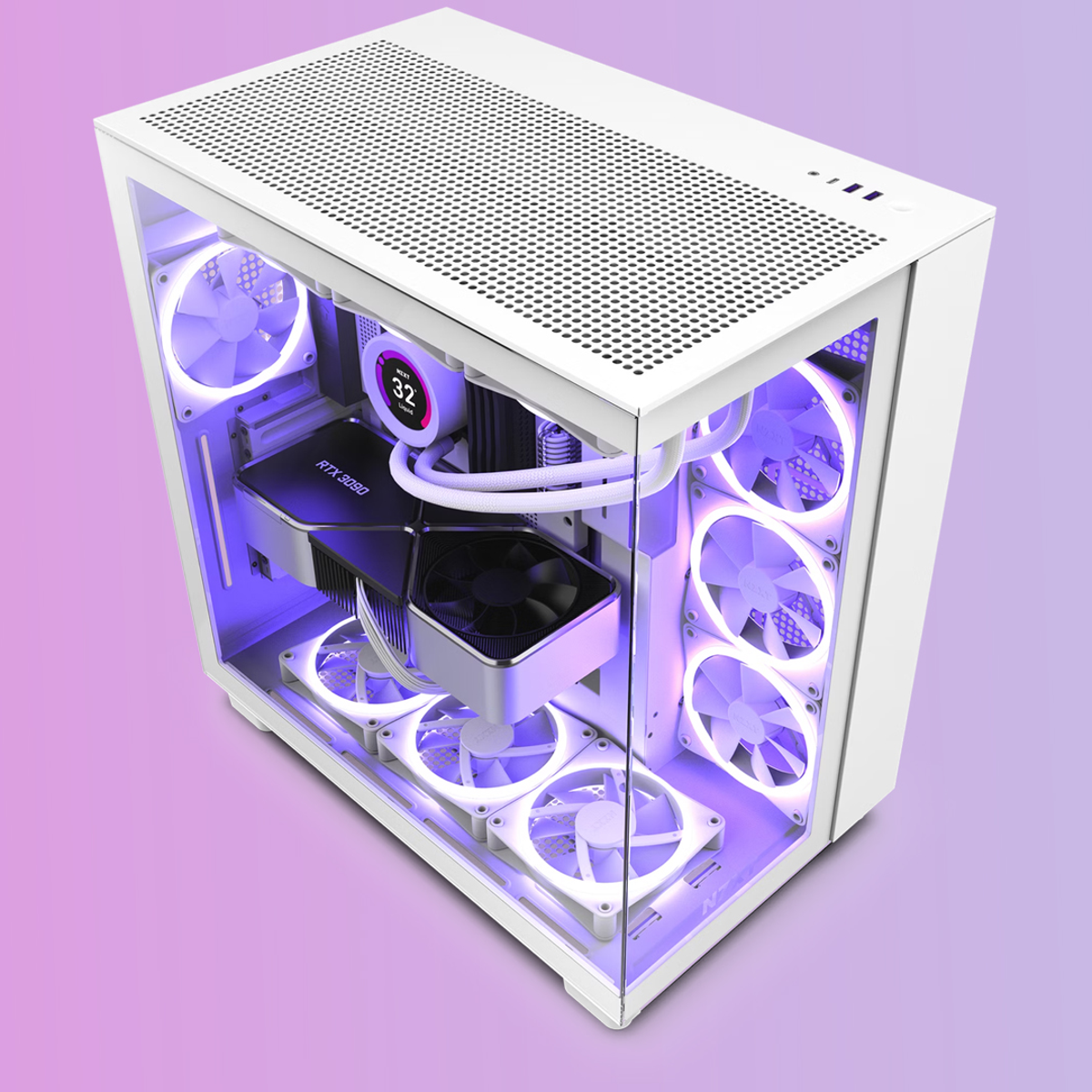
Choosing the right computer can be confusing, but an experienced PC builder can help you select the best configuration for your needs. With so many processors, graphics cards, RAM options, and storage types available, it can be difficult to know where to start. A computer that works perfectly for gaming may not be the best choice for architectural design or professional 3D rendering. Similarly, a computer built for office work may struggle with heavy video editing projects or complex 3D models.
The key is to understand what you need your computer to do before deciding which components to buy. A good PC builder helps you select the right configuration based on your software, workload, performance expectations, and budget. Instead of spending more money on expensive components you may never fully use, you can invest in the parts that make the biggest difference to your work.
Whether you are an architect, video editor, 3D artist, or gaming enthusiast, this guide will help you understand the difference between various PC configurations and how to choose an assembled computer that suits your needs.
Why Choosing the Right PC Configuration Matters
Not every computer performs equally well for every task. The processor, graphics card, memory, and storage all contribute to performance, but their importance changes depending on how you use your PC.
For example, an architect working with large building models may need plenty of RAM, a capable processor, and a graphics card that handles complex 3D views smoothly. A gamer may benefit more from investing in a powerful GPU to achieve higher frame rates and better graphics.
Choosing the wrong configuration can lead to several problems:
- Slow rendering and long waiting times.
- Lag while editing videos or working with 3D models.
- Low gaming performance or unstable frame rates.
- Software crashes when projects consume too much memory.
- Unnecessary spending on components that provide little benefit to your workload.
The best solution is to build a balanced PC around your actual requirements rather than choosing parts based only on their specifications or popularity.
PC Builder Guide: Which Configuration Is Best for Your Work?
Before selecting components, identify the main purpose of your computer. Most professional and personal workloads fall into three broad categories: 3D modelling and rendering, video editing, and gaming.
1. Best PC Builder Configuration for 3D Modelling and Rendering
3D modelling and rendering can require significant computing power, particularly when working with detailed architectural designs, realistic materials, lighting, and large scenes.
Software such as Blender, Autodesk 3ds Max, and other 3D applications may use different combinations of CPU and GPU resources, depending on the task and rendering engine.
For a 3D-focused PC, consider these components:
- Graphics card (GPU): Important for GPU rendering, complex viewports, supported effects, and accelerated workflows.
- Processor (CPU): Helps with modelling operations, simulation, certain rendering engines, and other CPU-intensive tasks.
- RAM: Provides room for large models, textures, assets, and demanding projects.
- NVMe SSD: Helps applications load quickly and reduces waiting when opening and saving large files.
If your rendering software supports GPU rendering, investing in a powerful compatible graphics card can significantly improve rendering performance. However, some renderers and workflows depend heavily on the CPU, so check your specific software before choosing components.
For example, a 3D artist who regularly renders detailed scenes in Blender using a supported GPU renderer may benefit from a stronger graphics card. Someone using a CPU-based rendering engine may gain more from a high-performance processor with multiple cores.
Practical tip: Check whether your primary software supports CPU rendering, GPU rendering, or both. This is one of the most important decisions when planning a 3D workstation.
2. Best PC for Architects and Interior Designers
Architects and interior designers often use several applications throughout the day, including AutoCAD, Revit, SketchUp, Lumion, Enscape, V-Ray, and other design or rendering tools.
Because each application works differently, there is no single configuration that is ideal for every architectural workflow.
A professional PC builder can help you choose a suitable architecture PC configuration that considers the following components:
- CPU performance: Important for many modelling operations, calculations, and tasks that depend on strong individual-core performance.
- GPU performance: Particularly important for real-time visualisation, GPU rendering, detailed 3D views, and supported effects.
- RAM capacity: Helps when working with large building models, multiple applications, and complex project files.
- Fast storage: An SSD helps applications launch quickly and makes project-file handling more convenient.
For example, an architect who primarily uses AutoCAD for 2D drawings may not need the same graphics card as a designer who regularly renders realistic walkthroughs in Lumion or Enscape.
If most of your work involves CPU-based rendering, prioritise a processor suited to that renderer. If you depend on real-time visualisation or GPU rendering, allocate more of your budget to a compatible graphics card.
Practical tip: Make a list of your main architectural applications and identify their hardware requirements before building your PC. This helps avoid paying for performance you do not need.
3. Best PC for Video Editing
Video editing requirements depend on the footage you work with, the editing software you use, and the effects included in your projects.
Editing Full HD videos is generally less demanding than working with complex 4K footage, multiple video layers, advanced effects, or high-resolution colour grading.
A professional PC builder can help you choose a suitable Video Editing PC configuration that considers the following components:
- CPU: Important for video processing, encoding, decoding, and many editing operations.
- GPU: Can accelerate supported effects, colour grading, playback, and exports.
- RAM: Helps manage large timelines, multiple applications, and complex projects.
- SSD storage: Useful for operating-system files, editing software, active projects, and media caches.
For a creator who produces social media reels and Full HD videos, a mid-range configuration may be sufficient. A professional editor working with high-resolution footage and demanding effects may benefit from more memory, faster storage, and stronger CPU and GPU performance.
A good editing setup should also include enough storage for video files, which can occupy considerable space. Depending on your workflow, a separate drive for project media or backups may be helpful.
Practical tip: Check the recommended system requirements for your editing software and the codecs you use. Hardware acceleration depends on software support, so a more expensive GPU does not guarantee faster performance in every editing task.
4. Best PC for Gaming
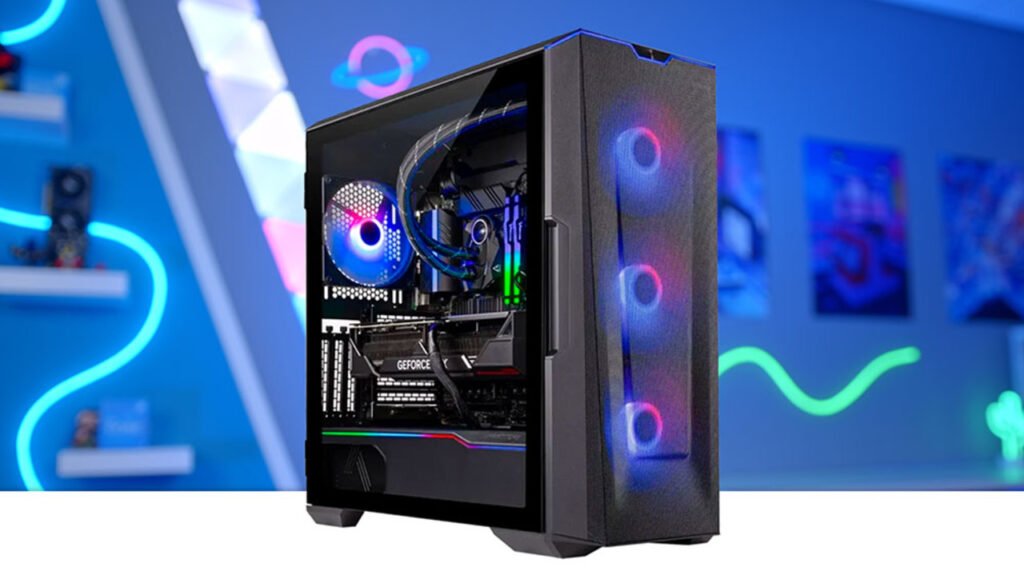
Gaming PCs usually need a balance between the processor and graphics card, with the GPU often being the most important component for graphics performance at higher resolutions.
However, the best configuration also depends on the types of games you play and the monitor you use.
Consider these factors:
- GPU: Influences graphics quality, resolution, and frame rates in many games.
- CPU: Important for game logic, multiplayer performance, and high frame rates in CPU-intensive games.
- RAM: Helps provide sufficient memory for modern games and background applications.
- SSD: Reduces loading times in games that support fast storage.
- Monitor: Determines the resolution and refresh rate your system should aim to support.
For example, a gamer using a Full HD monitor may not need the same graphics card as someone targeting high frame rates at 1440p or gaming at 4K resolution.
Competitive gamers may prioritise high frame rates and a high-refresh-rate monitor, while players who enjoy visually demanding single-player games may prefer higher graphical settings and resolution