Is your laptop taking ages to boot up? Are you staring at a spinning wheel while trying to open a basic document, draft an architectural render, or submit a school assignment before midnight? Best Laptop Service in Kottayam
When your computer slows down to a crawl, it feels like your entire day gets stuck in traffic. For students juggling group projects, school children completing online homework, and architects running heavy software, a laggy machine isn’t just annoying—it directly hurts your productivity. Before you give up and spend a small fortune on a brand-new computer, there is a simple fix you should know about. Most of the time, the real bottleneck isn’t your processor or your screen; it is your old, traditional Hard Disk Drive (HDD). Upgrading from an outdated hard drive to a Solid-State Drive (SSD) can make your machine feel brand new again. If you are struggling with performance issues and looking for a reliable laptop service center near you, understanding how an SSD upgrade works will help you make the best choice for your device.
Why Is Your Laptop Running So Slow?
To fix a slow computer, it helps to understand what is happening inside the machine. If your laptop is a few years old, chances are it uses a traditional mechanical hard drive to store all your photos, programs, and files.
Think of a mechanical hard drive like an old record player. Inside the drive, a physical magnetic platter spins around while a tiny mechanical arm moves back and forth to read and write data.
- Mechanical Limitations: Because physical parts have to move to find your files, reading data takes time. Over time, as files get scattered across the drive, the arm has to work harder and longer.
- Modern Demand: Today’s programs, operating system updates, and browser tabs require instant data access. Old mechanical drives simply cannot keep up with these modern demands.
- Wear and Tear: Years of daily use, opening and closing apps, and moving the laptop around physically wear down mechanical drives, causing overall system slowdowns, freezing, and long startup times.
The Ultimate Fix: Upgrading from HDD to SSD
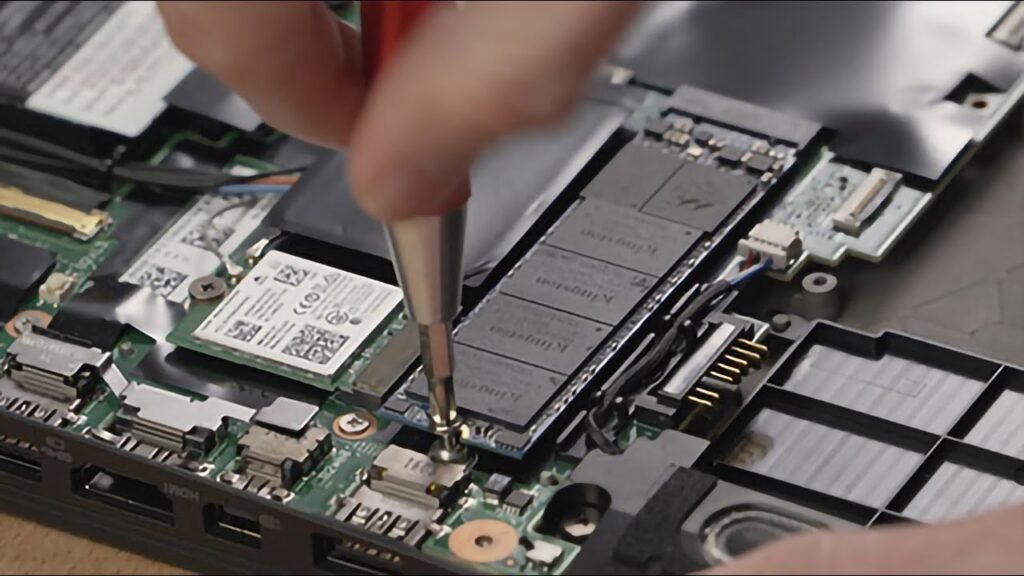
Replacing your old HDD with a Solid-State Drive (SSD) is the single most effective upgrade you can make for an aging laptop. Unlike traditional hard drives, SSDs have no moving mechanical parts. Instead, they store information on flash memory chips—similar to how a USB flash drive or a smartphone works, but at much higher speeds.
   TRADITIONAL HDD                        MODERN SSD
┌───────────────────────┐            ┌───────────────────────┐
│  [ Spinning Platter ] │            │  [ Flash Memory ]     │
│          ▲            │   VS       │  [ Microcontroller ]  │
│  [ Read/Write Arm ]   │            │  [ Instant Access ]   │
└───────────────────────┘            └───────────────────────┘
  Slower & Mechanical                  Fast & Shock-Resistant
1. Speed That Feels Instant
An SSD reads and writes data up to 4 to 10 times faster than a standard hard drive. This means your operating system boots up in seconds rather than minutes. Applications launch instantly, and files load without delay.
2. Built for Durability and Portability
Since SSDs contain no moving parts, they are far more durable than traditional hard drives. If you bump your backpack or drop your laptop bag while commuting to campus or work, an SSD is much less likely to suffer physical damage or data loss.
3. Better Battery Life and Silent Performance
Mechanical drives require power to physically spin a platter, which drains your battery and generates heat and noise. SSDs operate silently, use significantly less energy, and generate far less heat—helping your battery last longer during long study sessions or working hours.
How Different Users Benefit from an SSD Upgrade
Different people use laptops in different ways, but nearly everyone suffers when speed dips. Here is how upgrading your storage directly improves daily tasks across different user groups.
For Students
College and university students often run dozens of browser tabs at once, stream online lectures, compile notes, and write research papers simultaneously.
- No More Waiting: Open research documents and complex spreadsheets instantly.
- Smooth Multitasking: Switch between PDF readers, word processors, and video calls without system lag.
- Reliable Deadlines: Avoid frustrating crashes right when you are trying to submit an assignment online.
For School Children and Online Learners
Early education now relies heavily on digital tools, educational software, and web portals.
- Frustration-Free Learning: Young students can quickly get frustrated when technology freezes up. An SSD keeps apps responsive, keeping them focused on learning rather than waiting on loading screens.
- Simple Maintenance: Upgrading an older family laptop with an SSD extends its usable life for schoolwork without the cost of buying a whole new computer.
For Architects and Design Professionals
Architects, draftspeople, and visual designers put heavy demands on hardware. Programs like AutoCAD, Revit, SketchUp, and Photoshop require rapid data reading to pull up large design files and texture libraries.
| Workload Task | Mechanical HDD Performance | Solid-State Drive (SSD) Performance |
|---|---|---|
| Opening Large CAD/3D Files | Takes 2 to 5 minutes; frequent freezing | Loads in seconds; smooth file rendering |
| System Startup Time | 1 to 3 minutes | 10 to 15 seconds |
| Switching Heavy Software | Stutters and delays while reading cache | Smooth, instant switching |
| File Saving & Transfer | Slow transfer speeds; prone to throttling | High-speed data transfer without slowdowns |
Is It Time to Visit a Laptop Service Center Near You?
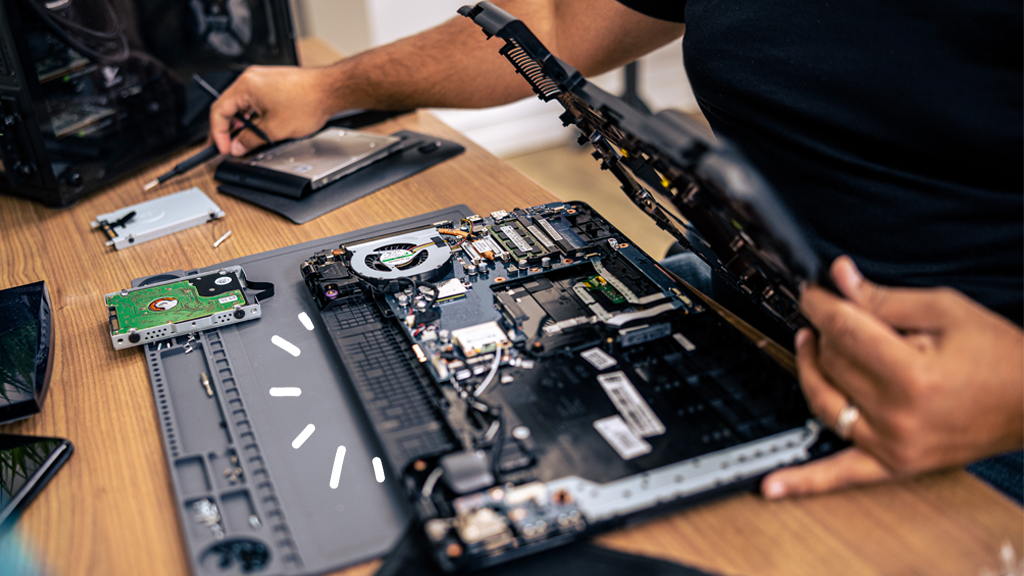
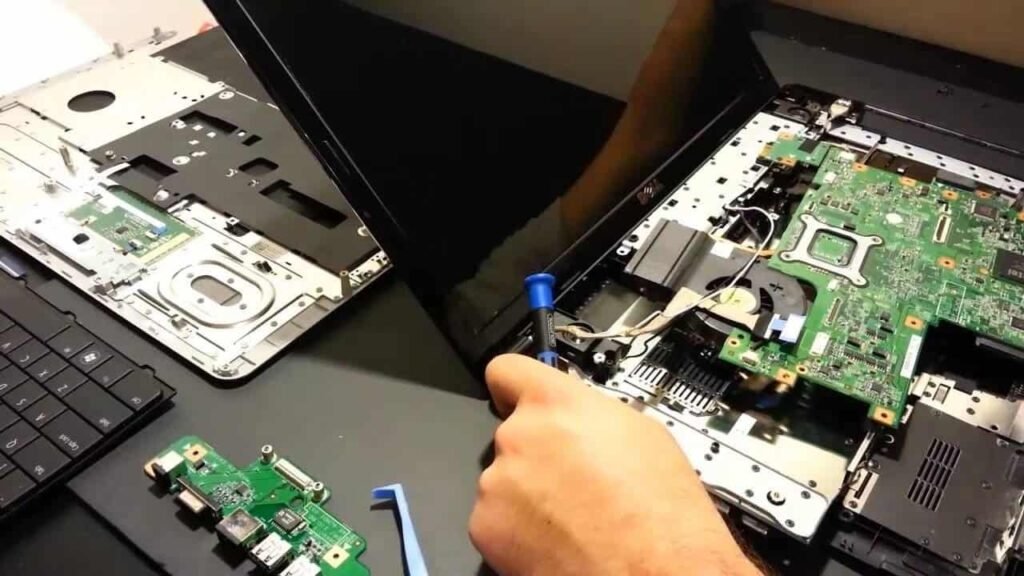
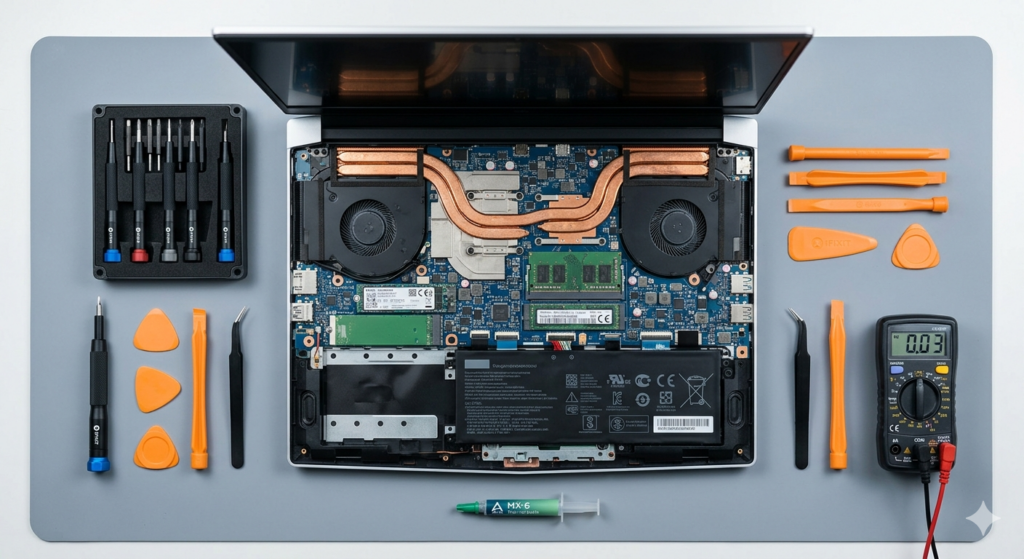
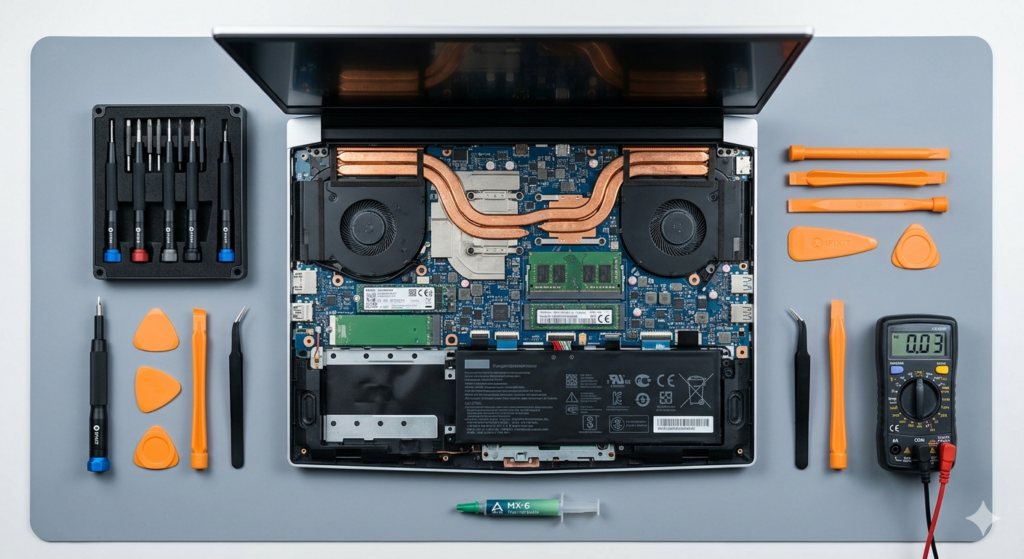
While some tech-savvy users attempt DIY upgrades, replacing a hard drive and transferring an entire operating system, software licenses, and personal data requires proper care. Bringing your machine to a reliable laptop service center near your home or workplace ensures the job is done safely without risking data loss.
+-------------------------------------------------------------------+
|                   WHAT A PROFESSIONAL SERVICE INCLUDES            |
+-------------------------------------------------------------------+
| 1. System Compatibility Assessment (SATA vs. NVMe M.2 SSD)        |
| 2. Complete Data Backup & Clone (Preserving Files & Settings)     |
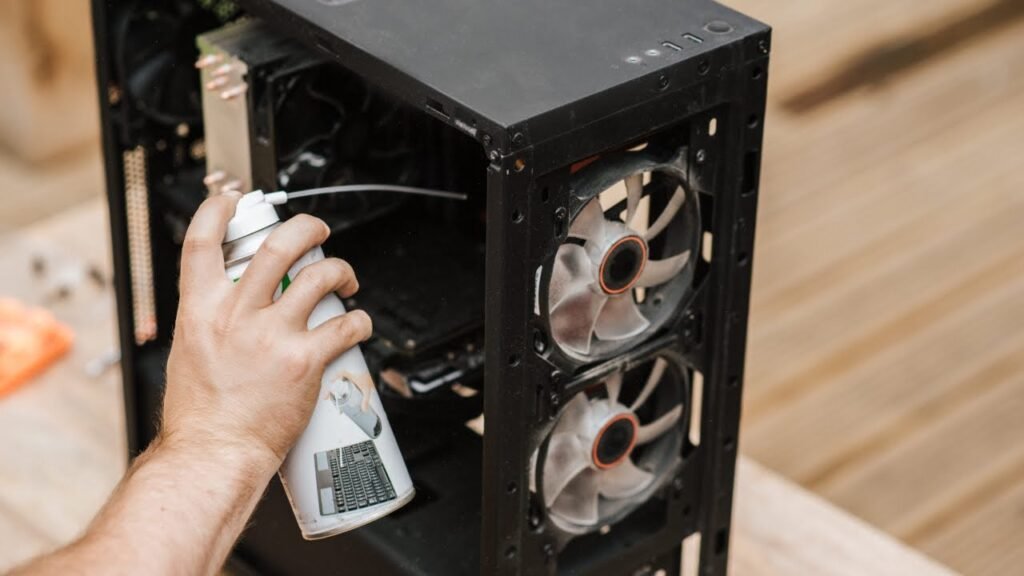
| 3. Professional Dust Cleaning & Internal Hardware Inspection      |
| 4. Fresh OS Installation & Performance Optimization               |
+-------------------------------------------------------------------+
Working with a local technician gives you peace of mind that your data remains safe, your software settings stay intact, and your hardware gets a thorough checkup.
Simple Habits to Keep Your Laptop Running Fast
While an SSD upgrade provides the biggest performance boost, practicing good digital habits will keep your newly upgraded laptop running smoothly for years to come:
- Clear Unnecessary Startup Apps: Prevent programs you rarely use from opening automatically when you turn on your laptop.
- Keep Free Storage Space: Try to leave at least 15% to 20% of your SSD space free so the drive can manage background performance tasks efficiently.
- Manage Your Browser Tabs: Closing unused browser tabs frees up valuable RAM, keeping your system responsive.
- Perform Regular OS Updates: Keep your operating system updated with the latest performance patches and security updates.
Give Your Laptop a Second Life
A slow laptop does not automatically mean you need to buy a brand-new computer. Replacing your outdated mechanical hard drive with a modern Solid-State Drive is one of the most practical, cost-effective ways to restore speed and responsiveness to your machine. Whether you are typing up term papers, running detailed architectural models, or managing daily school tasks, an SSD upgrade gives your trusty device the performance boost it needs to keep up with your day.
contact out laptop service center for more details